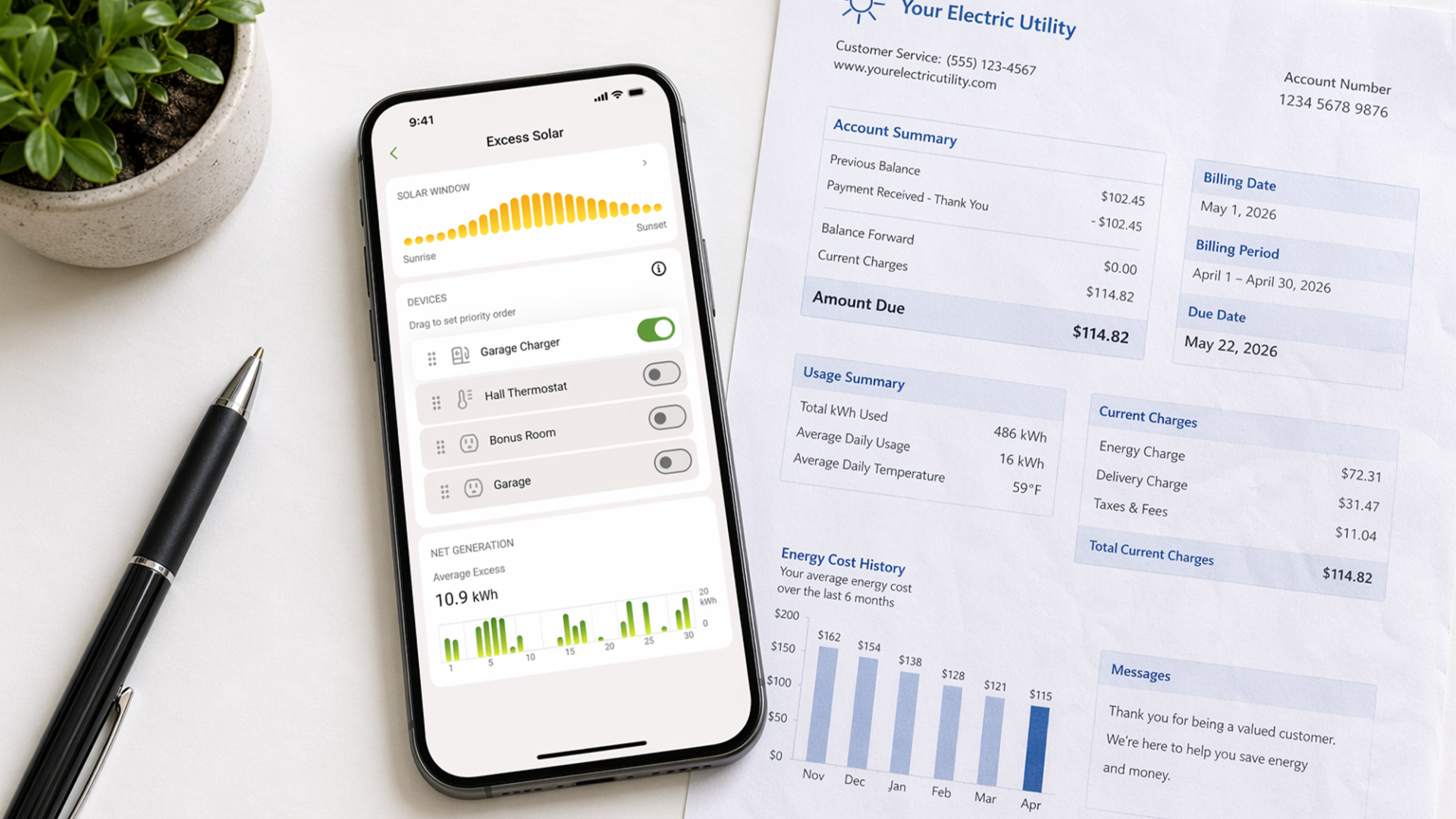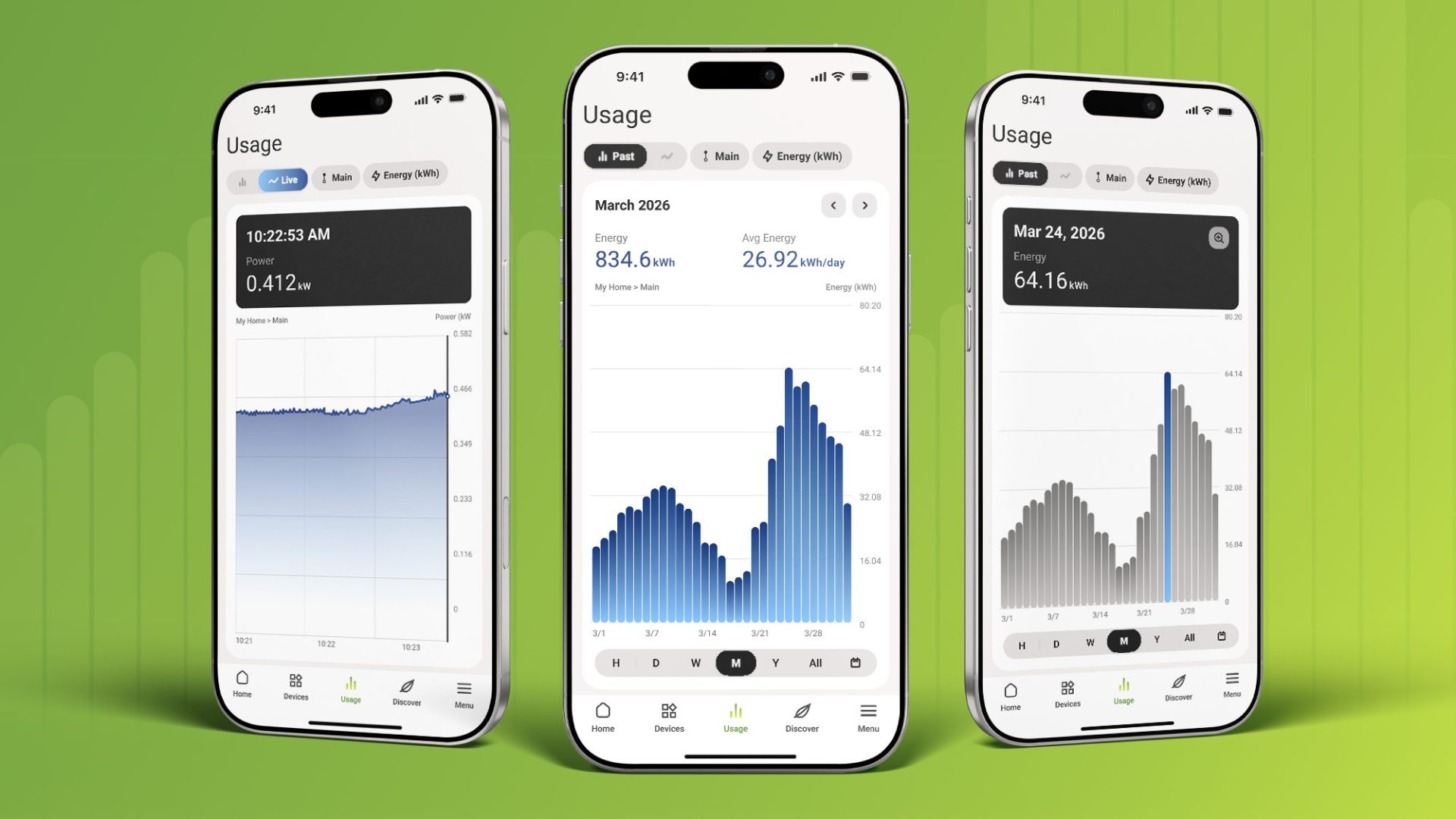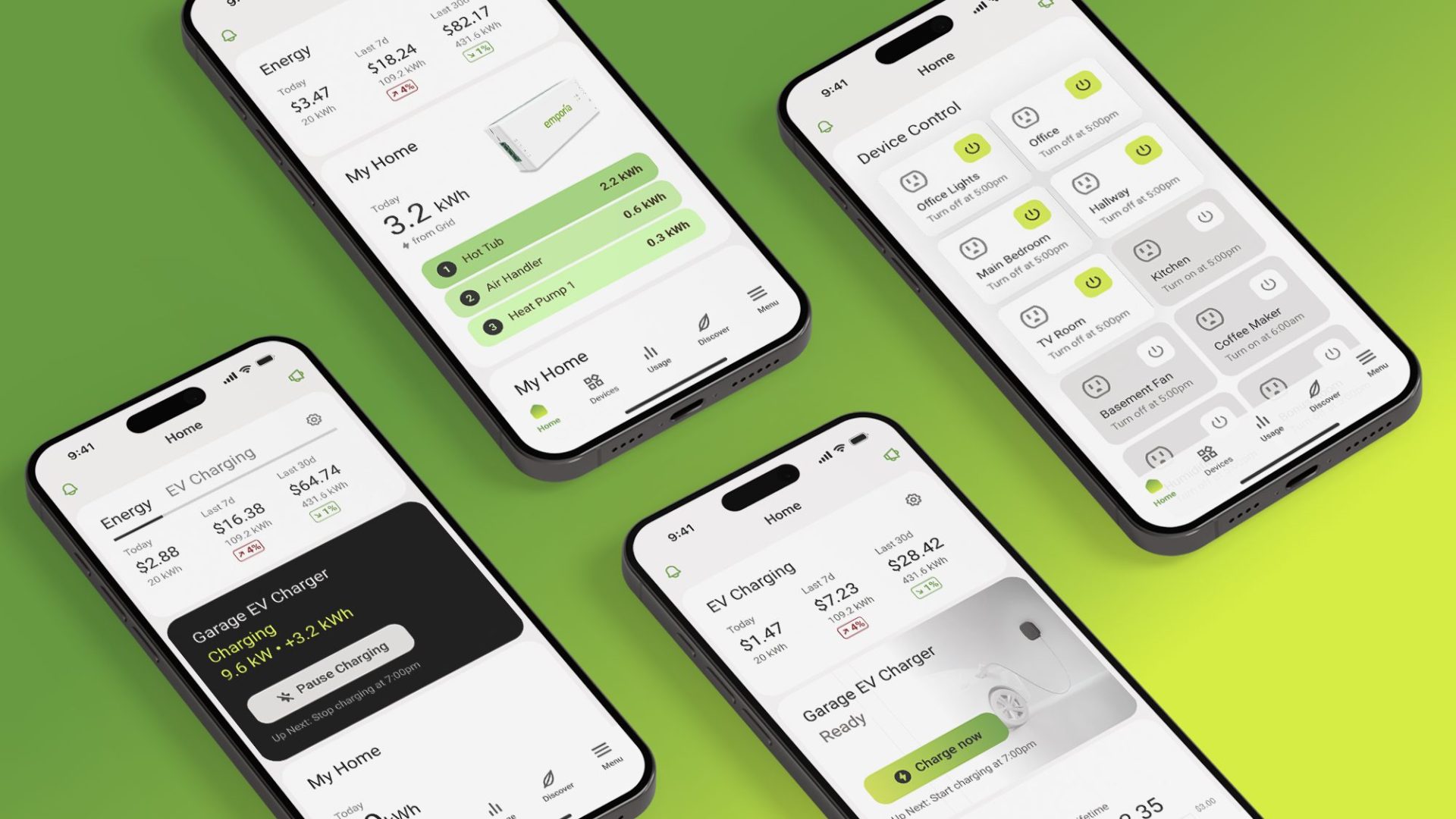
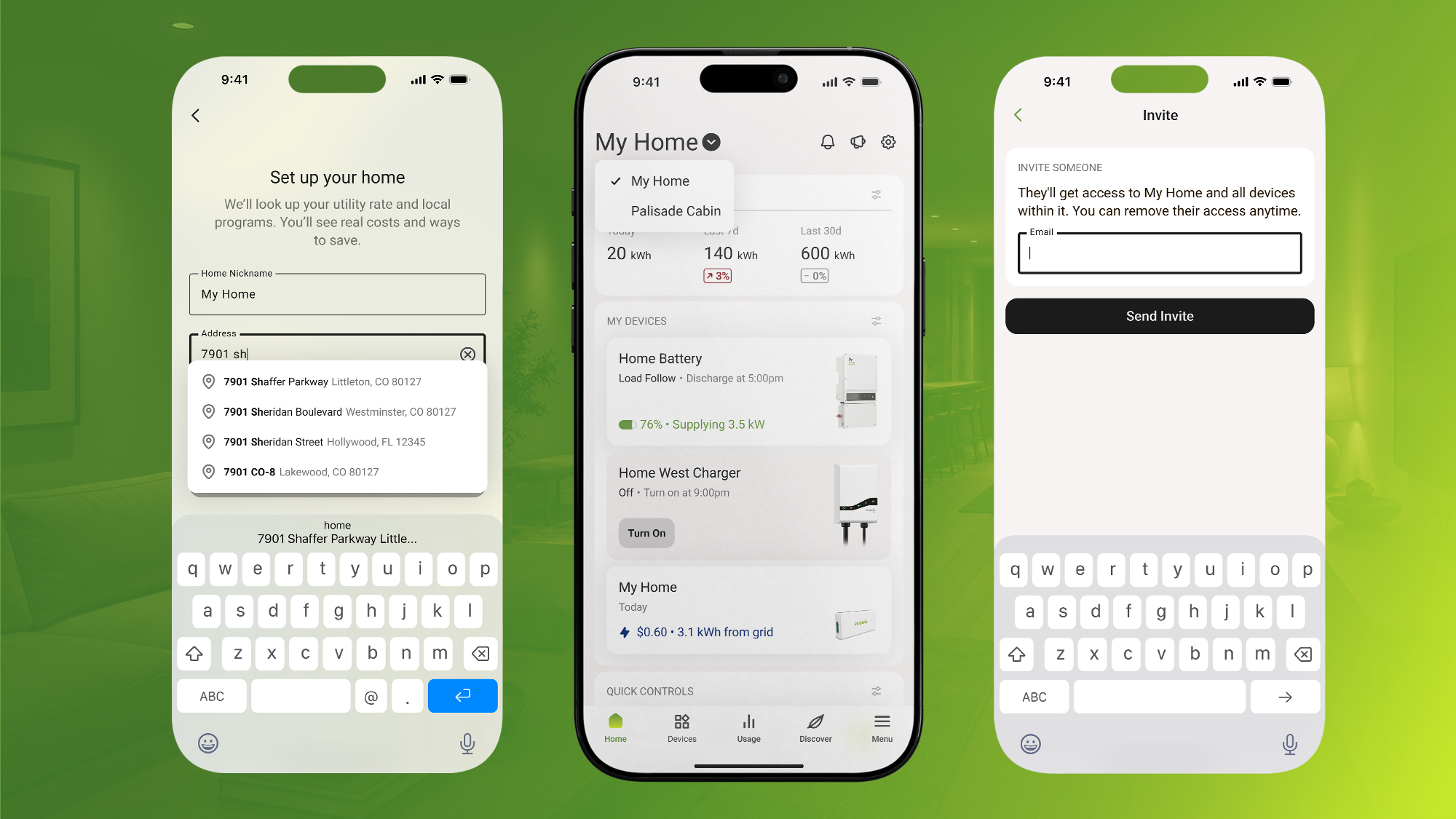
Location, utility rate, billing date, and who can see a device used to live in different places in the Emporia app. When those devices sit at the same property, those settings belong together.
A Home groups the devices that share an address, a timezone, a utility rate, a billing day, and the people who should have access. You edit those settings once at the Home, and the devices on it inherit them. If you manage a cabin, a rental, or a charger that lives somewhere else, you add another Home instead of mixing rates and timezones.
This walkthrough covers what a Home is, how to check or create yours, how sharing works, and what happens if you delete one.
What Is a Home?
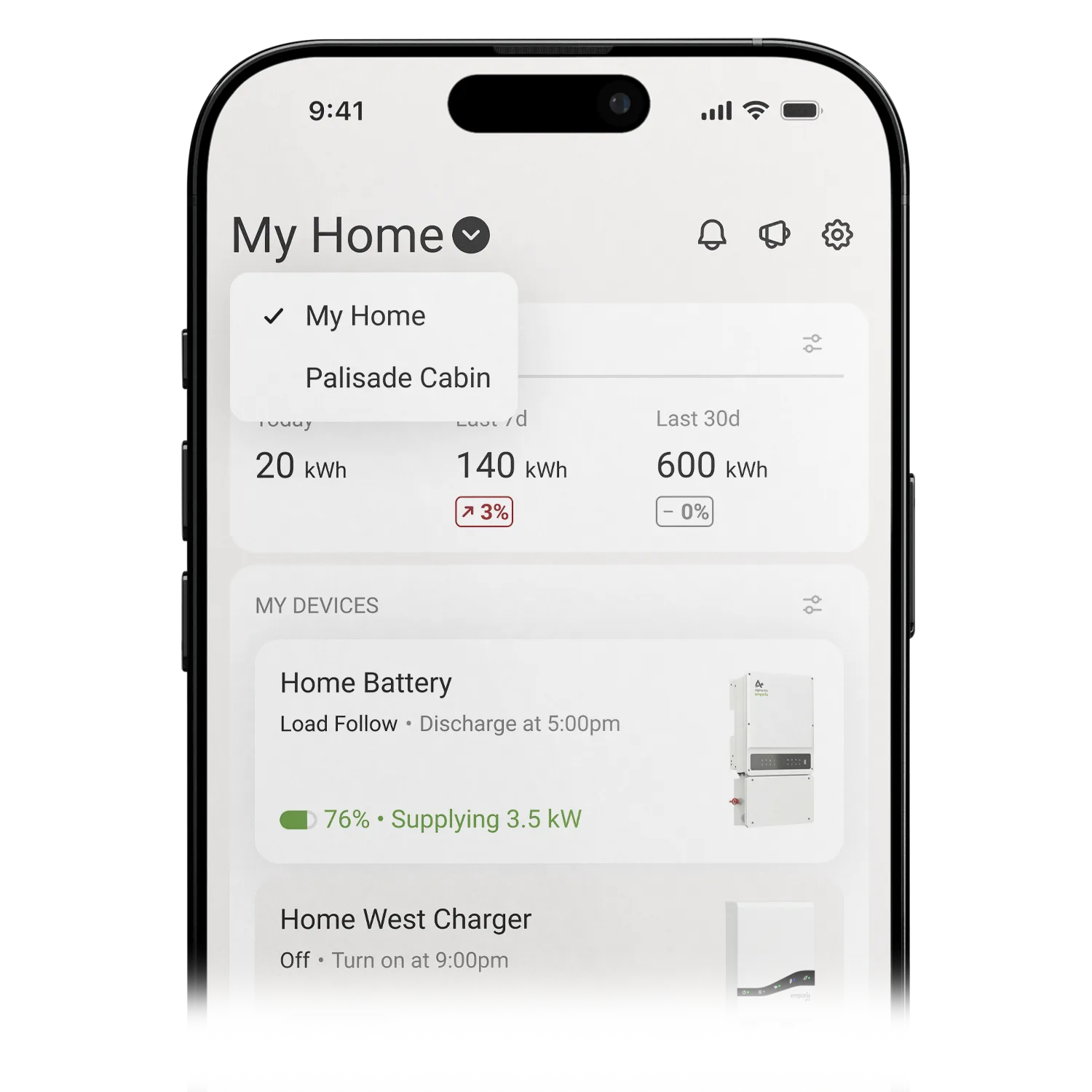
A Home is the property layer in the app: devices, location and timezone, utility and billing, and members. Each device belongs to one Home, or it stays Unassigned until you put it somewhere.
The Home tab shows the Home you’ve selected. The Devices tab is where you browse your devices and filter the list. Homes live in the Emporia app. For a look at how that screen is laid out, see the Home screen update.
Why Homes Matter for Energy Management
Cost and schedule views only hold up when the right rate and timezone sit on the right devices. When those settings lived per device, a cabin charger could pick up the house rate, or a second property could inherit the wrong billing day.
On a Home, you set location, utility plan, solar buyback, and billing date once. Member devices inherit those values. If you change the plan or timezone later, review Smart Saver windows on devices at that property so the cheaper hours still match the new rate.
Energy management features that pair a monitor with loads also need related devices together. PowerSmart, Load Sharing, Peak Demand, and Excess Solar expect that grouping. Combined or nested Vues move together and need to stay on the same Home. For the wider feature set, see home energy management.
How to Set Up or Check Your Home
- Open the Emporia app.
- Create a Home if the app prompts you, or open Homes from the menu if you already have one.
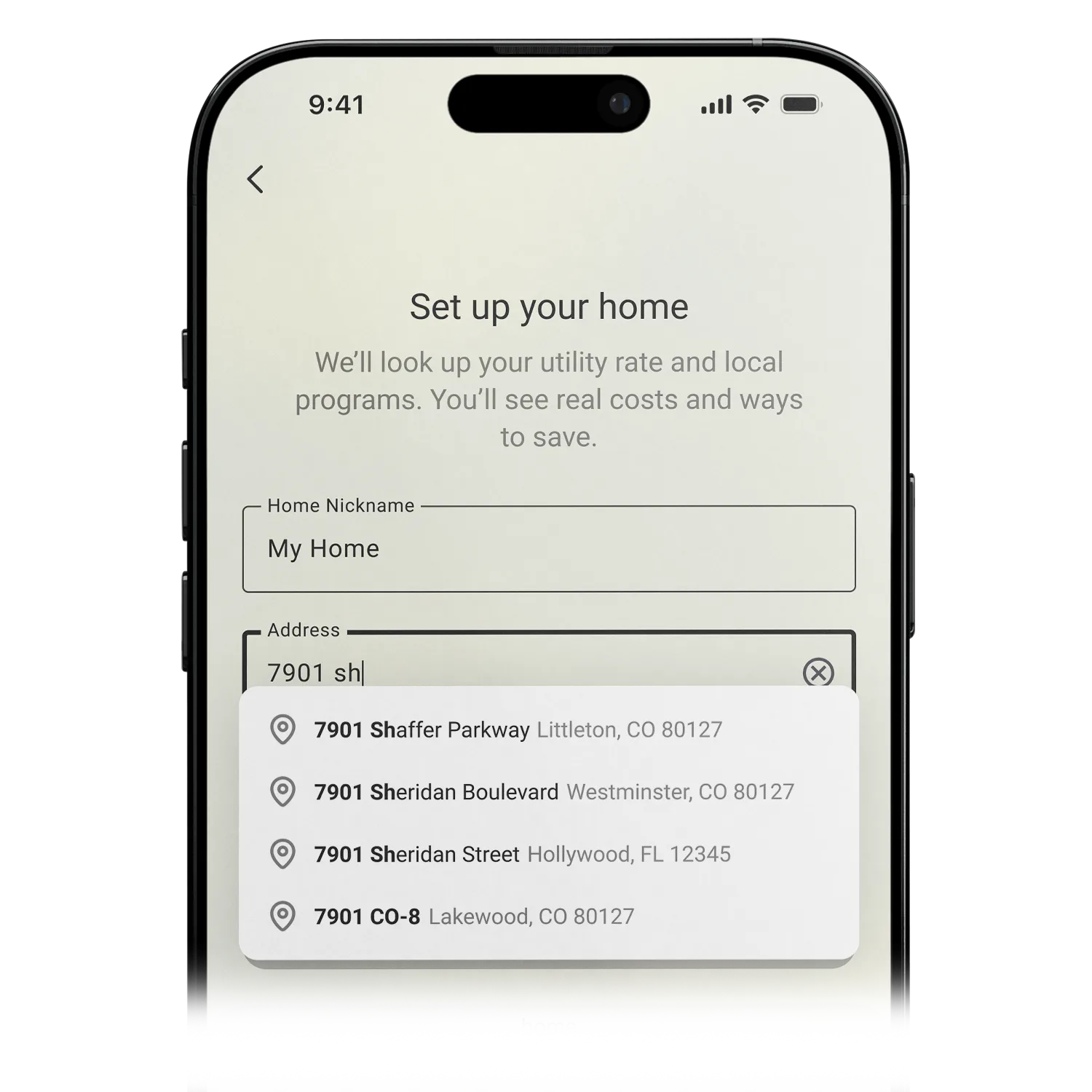
- Confirm the nickname, service address, utility plan, and billing date.
- Assign any Unassigned devices that belong at that property.
If you already had an account before Homes, look for the in-app prompt to create a Home. The Home tab stays a flat device list until you do. Your hardware stays on the account. You’re grouping devices you already own.
Can You Have More Than One Home?
Yes. Add a Home for a cabin, a rental, a second property, or a charger that lives at a different address. Switch Homes when you manage more than one place so rates and timezones stay with the property they belong to.
One device cannot sit on two Homes at once. If a charger moves, assign it to the Home that matches its current address.
How Home Sharing Works
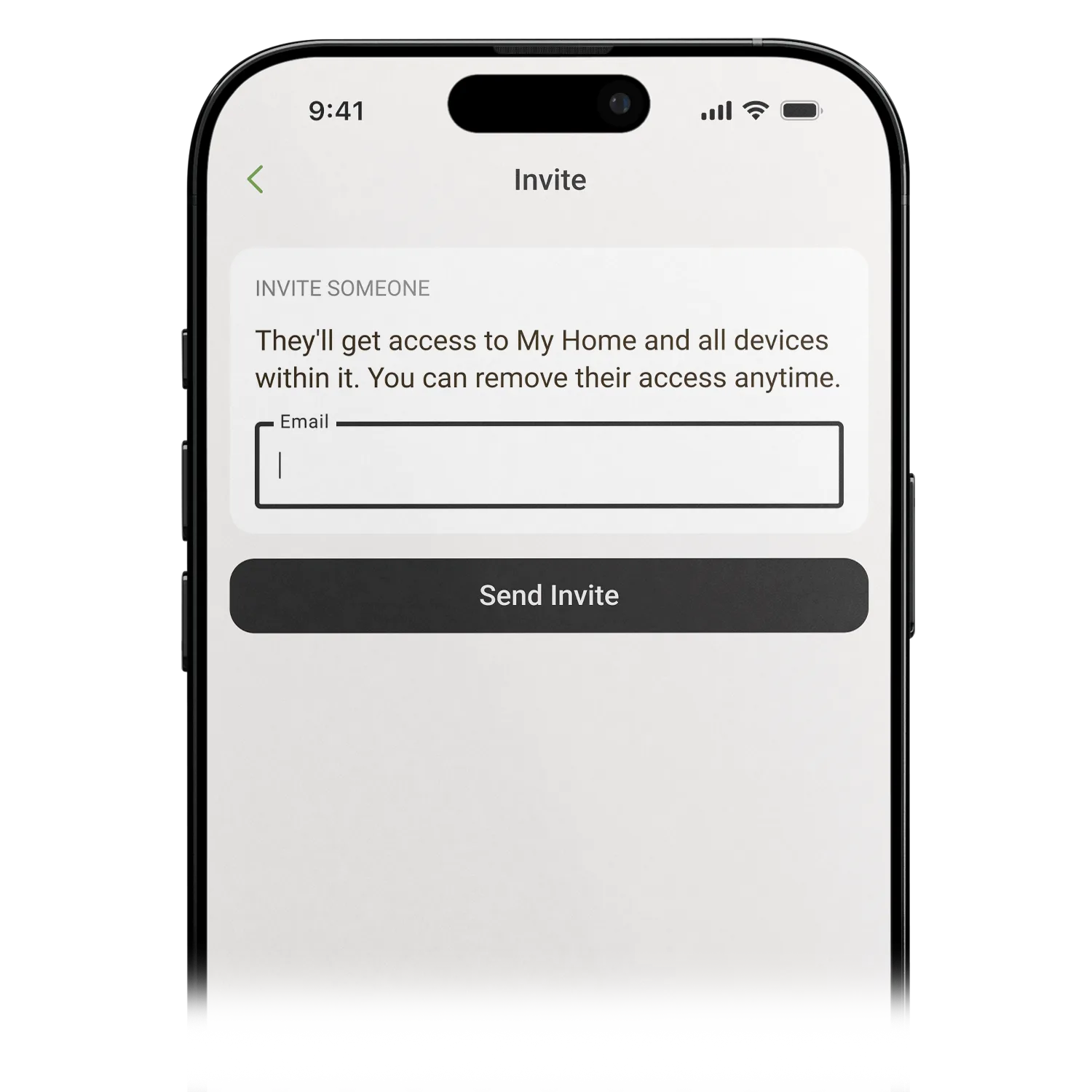
Invite someone to a Home when they should see the whole property: devices, settings, energy data, and alerts. There’s no guest role. Every member can invite others, edit Home settings, or delete the Home, so invite people you trust to manage it with you.
Share a single device only if that device is Unassigned. Once a device is on a Home, Home sharing is the path for access.
If someone already had access to a device, adding that device into a Home can give them access to the whole Home. Check Shared With after you move devices. Removing a device from a Home does not revoke that access. Use Shared With to undo it.
What Happens If You Delete a Home?
The devices become Unassigned. They are not deleted from your account. Anyone who already had device-level access keeps it.
Homes in the Emporia App
Homes are how the app groups devices by property. If you don’t have a Home yet, follow the in-app create prompt, then confirm the address and utility plan.
The Emporia app page has download links for the App Store and Google Play. For a look at recent charting improvements, see new charting and usage views. Help Center articles on Homes will follow this post.
Frequently Asked Questions
Your home energy, all in one place.
Monitor usage, control your devices, and track costs from anywhere in the free Emporia app.